HostOnNet Blog

Tag Archives: phpmyadmin

How do I installed phpMyAdmin on Ubuntu 16.04 LTS using Source Archive

Following is the steps that I have used to install phpMyAdmin on localhost Download phpMyAdmin Archive Then I run the commands below to set the correct permissions for phpMyAdmin to function. When I used above command, phpmyadmin folder displayed with


Restore wordpress from backup without phpMyAdmin in MariaDB

Today I restored backup of wordpress to another website. Here I am sharing the steps of how I completed the wordpress restore process. First I created Database in MariaDB. You’ll see this output confirming it was created. To see the


How to deactivate WordPress Plugins using PHPMyAdmin

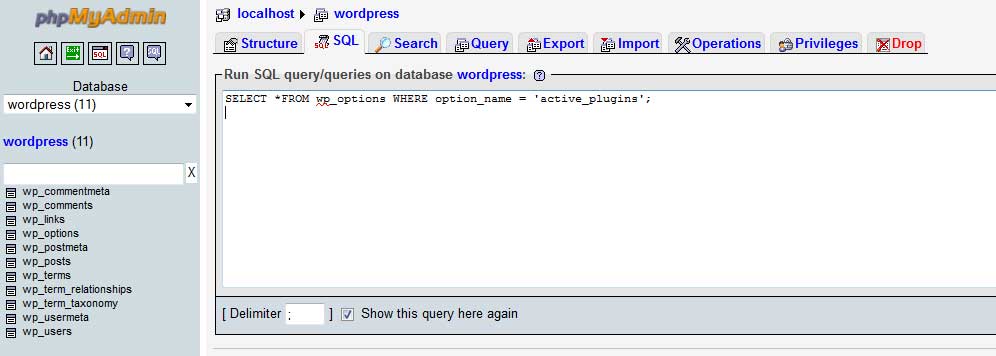
We can deactivate a plugin through WP Admin Dashboard. What we can do if we can’t accessing the admin area ? Yes, The following situations may block you out from accessing the dashboard 1). Will show a blank page after


phpmyadmin auto login

Install phpMyAdmin in RHEL/CentOS/Ubuntu/Debian To set phpmyadmin to auto login, edit config.inc.php Find $cfg[‘Servers’][$i][‘auth_type’] = ‘cookie’; Replace with $cfg[‘Servers’][$i][‘auth_type’] = ‘config’; Find $cfg[‘Servers’][$i][‘host’] = ‘localhost’; Add Below $cfg[‘Servers’][$i][‘user’] = ‘root’; $cfg[‘Servers’][$i][‘password’] = ‘YOUR_MYSQL_ROOT_PW_HERE’;