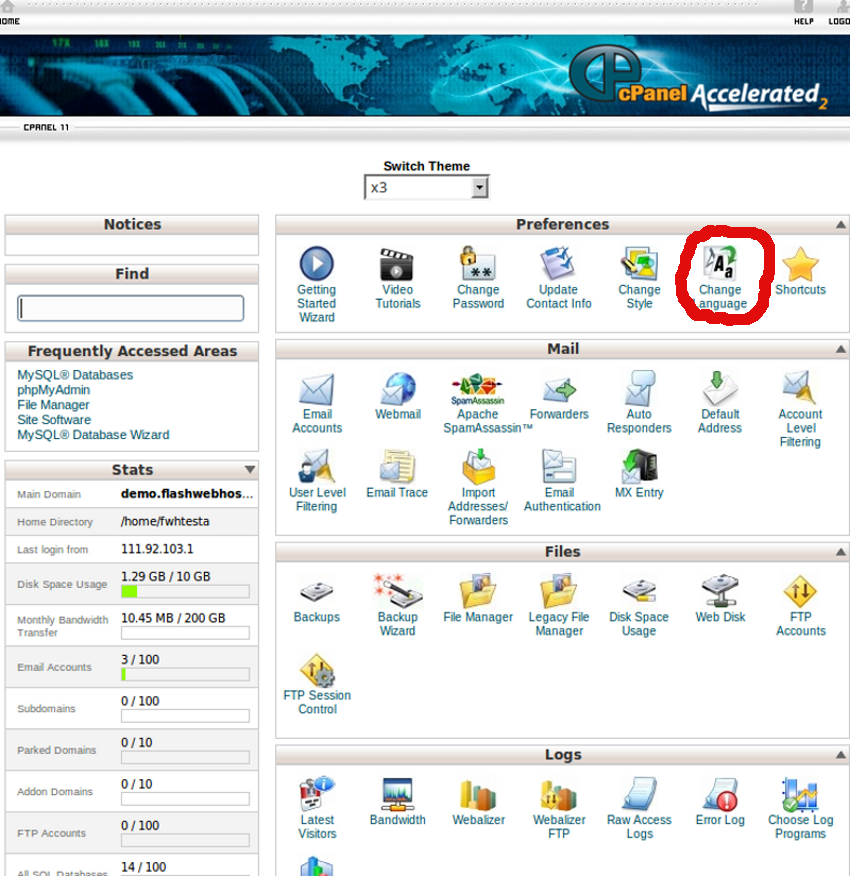
Login to cPanel. Click on the Change Language icon under the Preferences section as shown above. Open the Change Language icon within cPanel. Select a language in the pull-down menu. Select the language you want to use. Click on the
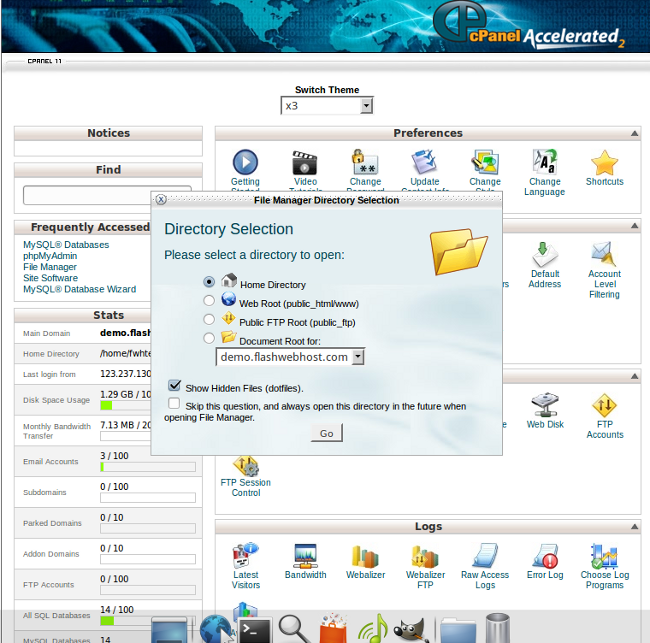
Hidden file and folder names start with a dot. Examples: .htaccess .htpasswd .fantasticodata .bashrc When using File Manager, you cannot see these files and folders unless you select the option to show hidden files. In cPanel, click the File Manager
This tutorial will help you to install Piwigo Photo Gallery Script on your domain. A web hosting space with PHP and MySQL version 5 or above is enough to install this. You can check the server requirements here. First download
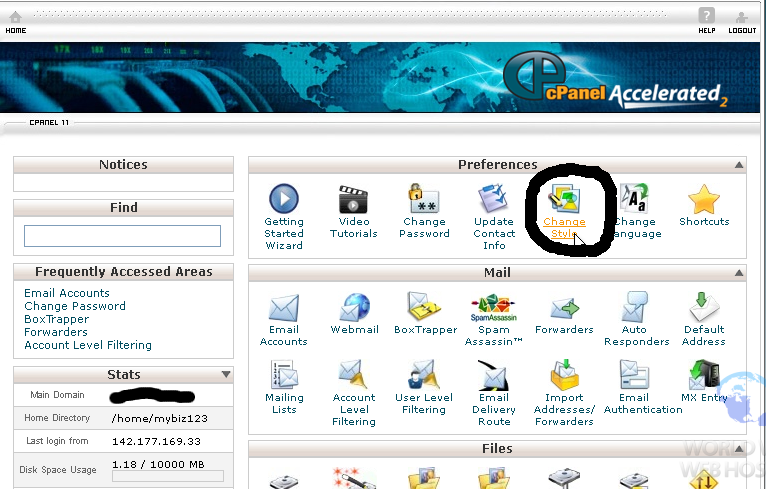
Login to cPanel and click Change Style. Click the radio button under the style you like. Scroll down and click the Change Style button. Return to the main page; you now have a new style in cPanel.
A customer had SSL certificate installed on his servers hostname for WHM and Cpanel. Recently SSH got expired. So he can’t access WHM. Got this fixed by
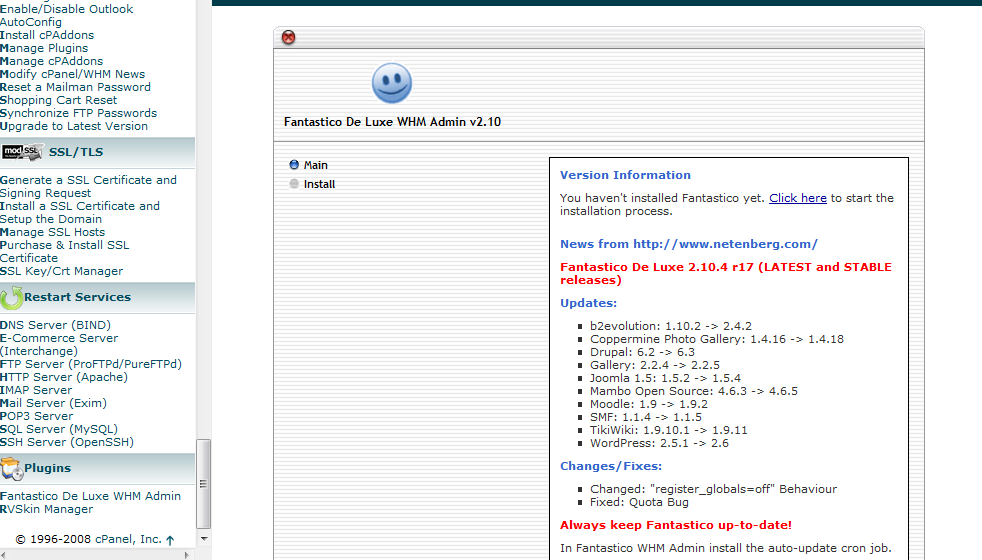
Login to server as root via SSH. Run following command to install fantastico. Log into the WHM and go to Main >> Plugins >> Fantastico De Luxe WHM Admin, and click install. All admin files will be created at /var/netenberg.
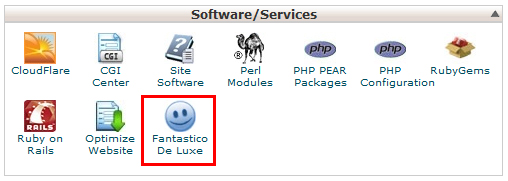
WordPress is web software you can use to create a beautiful website or blog. We like to say that WordPress is both free and priceless at the same time. Fantastico-De-Luxe is one-click script install software available in cPanel, through you
Log into WHM and scroll down and find SQL Services or search mysql root password. In that section you will find a link to reset your root password for MySQL. WHM >> SQL Services >> Change Mysql user password or
To change the SSH port login as root, and edit /etc/ssh/sshd_config Find the line that says Port 22 and change 22 to any number between 1024->65535 (above 30000 is best) and save the file. Once done, run: /etc/init.d/sshd restart Now
To Install CloudLinux, run If you have key based license, run If you have IP based license After installation finished, reboot the server, so server will boot into CloudLinux kernel After reboot, you will see kernel with “lve” Back to